How to Get Outlook Email Notifications on Telegram
Connect your Hotmail or Outlook inbox to Telegram in under 1 minute. Get instant AI-powered summaries for every new email.
The Problem: Missing Important Emails
You're in a meeting. A client sends an urgent email. You don't see it for 3 hours. By then, they've already called your competitor.
Or maybe you're a freelancer juggling multiple clients. You check your inbox every 15 minutes, breaking your focus each time. There has to be a better way.
What if every new email landed directly in your Telegram as an instant message? With an AI-generated summary, so you know in 2 seconds if it needs your attention.
That's exactly what Email2Chat does. And it takes less than 60 seconds to set up.
What You'll Need
- An Outlook or Hotmail email account (works with any @outlook.com, @hotmail.com, or Microsoft 365 address)
- A Telegram account (free — download here if you don't have one)
- That's it. No coding, no API keys, no complicated setup.
Step 1: Choose Your Email Provider
Go to email2chat.com/signup and you'll see the provider selection screen:
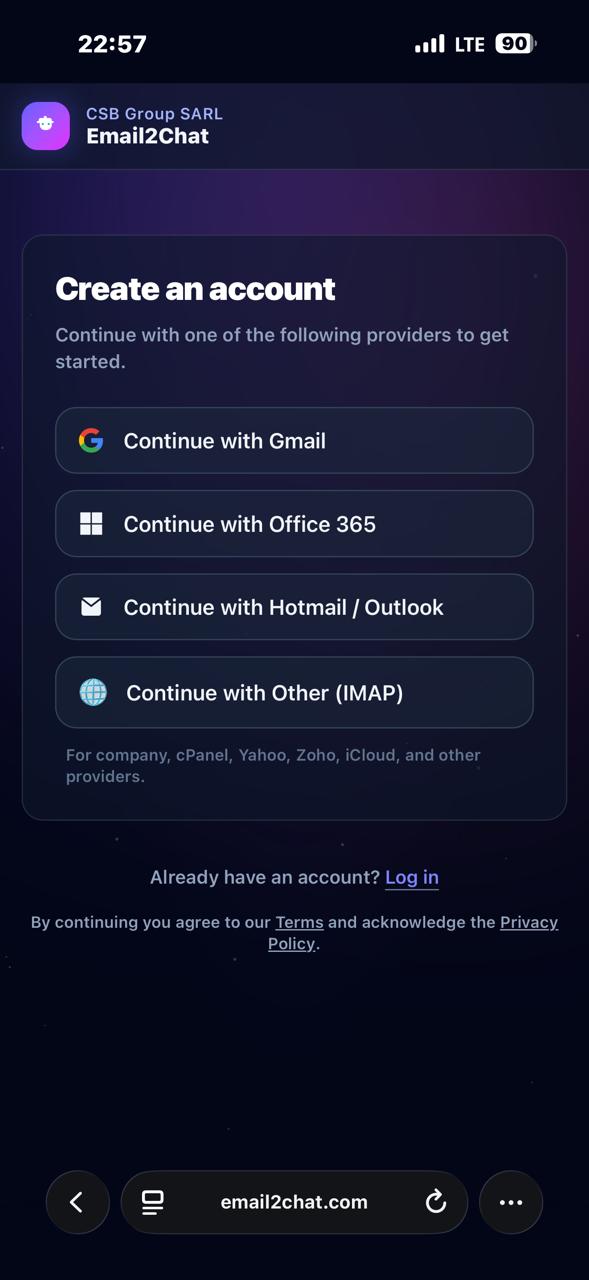 Choose "Continue with Hotmail / Outlook" to connect your Microsoft email.
Email2Chat supports Gmail, Office 365, Hotmail/Outlook, and any IMAP email. For this guide, we'll use Hotmail/Outlook.
Step 2: Review Permissions
Before connecting, Email2Chat shows you exactly what it will and won't do with your account:
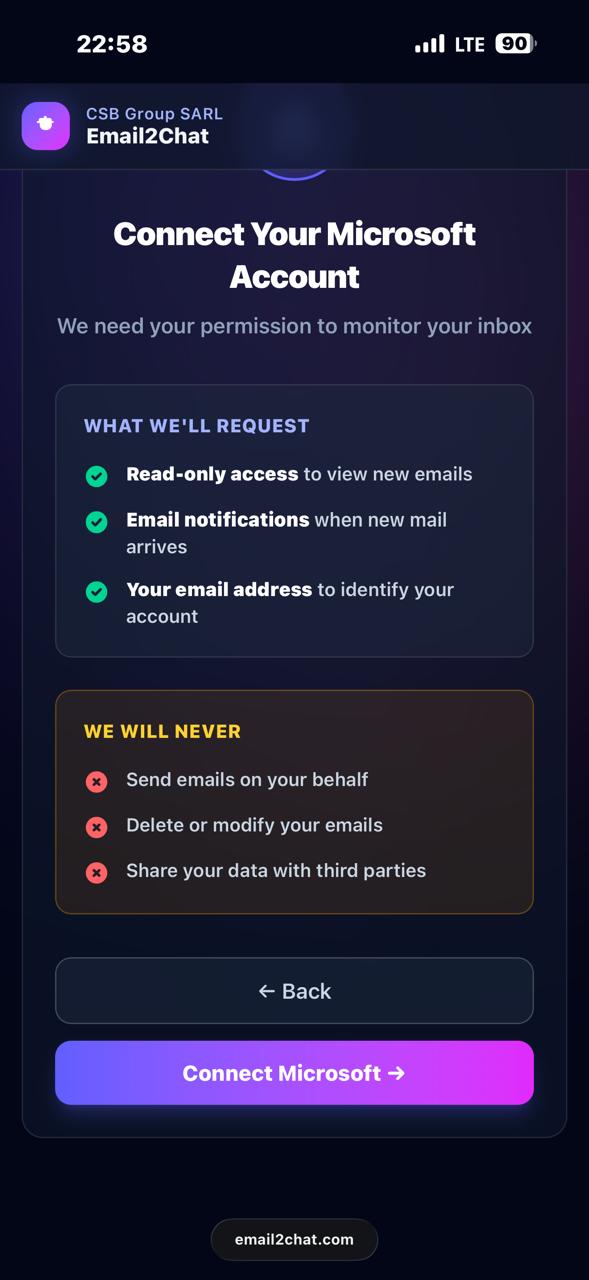 Email2Chat only requests read-only access. It will never send, delete, or modify your emails.
This is important: Email2Chat uses read-only access. It can only view your new emails to notify you. It cannot send emails on your behalf, delete anything, or share your data.
Step 3: Sign In with Microsoft
Click "Connect Microsoft" and you'll be redirected to Microsoft's official login page. Sign in with your Outlook or Hotmail credentials:
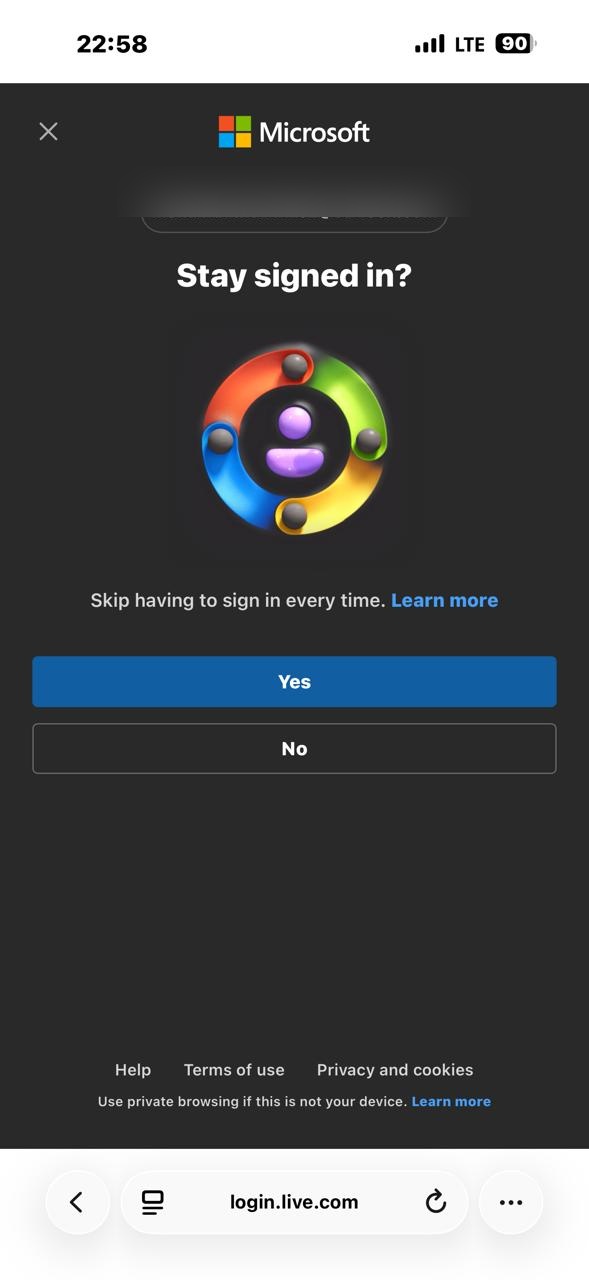 Sign in with your Microsoft account. Email2Chat never sees your password.
Microsoft will ask you to grant Email2Chat permission to read your email. Click Accept:
 Click Accept to grant read-only email access to Email2Chat.
Step 4: Successfully Connected
That's it for the email side! You'll see a confirmation screen:
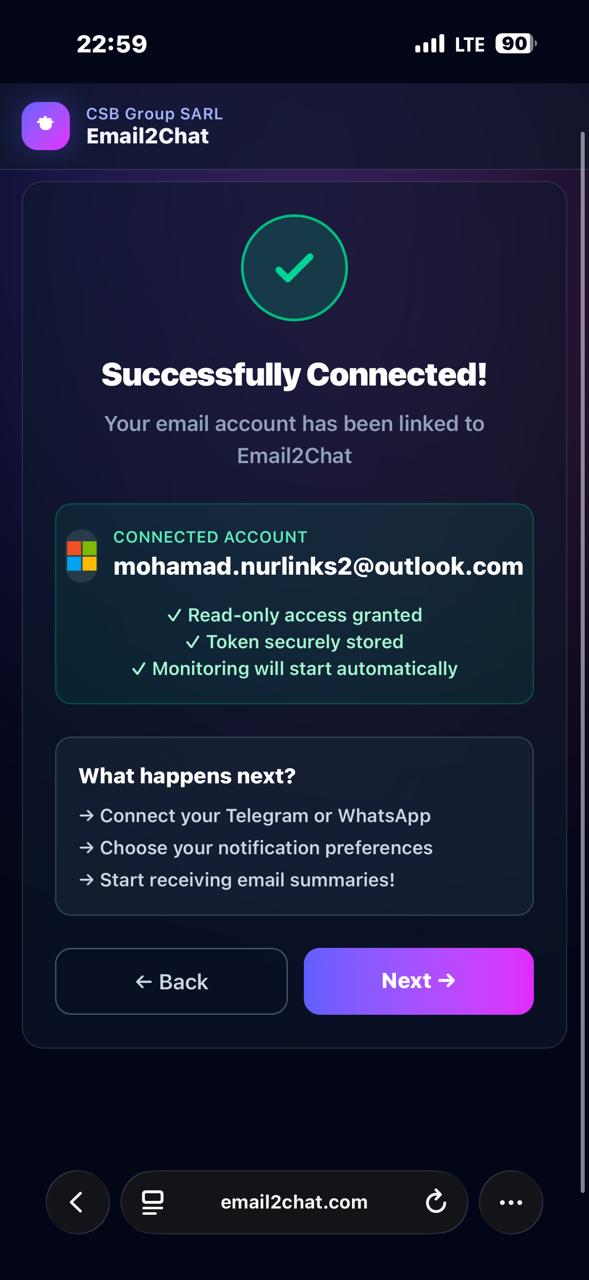 Your Outlook account is now linked. Monitoring starts automatically.
Step 5: Choose Telegram
Next, choose where you want to receive your notifications. Select Telegram (it's free!):
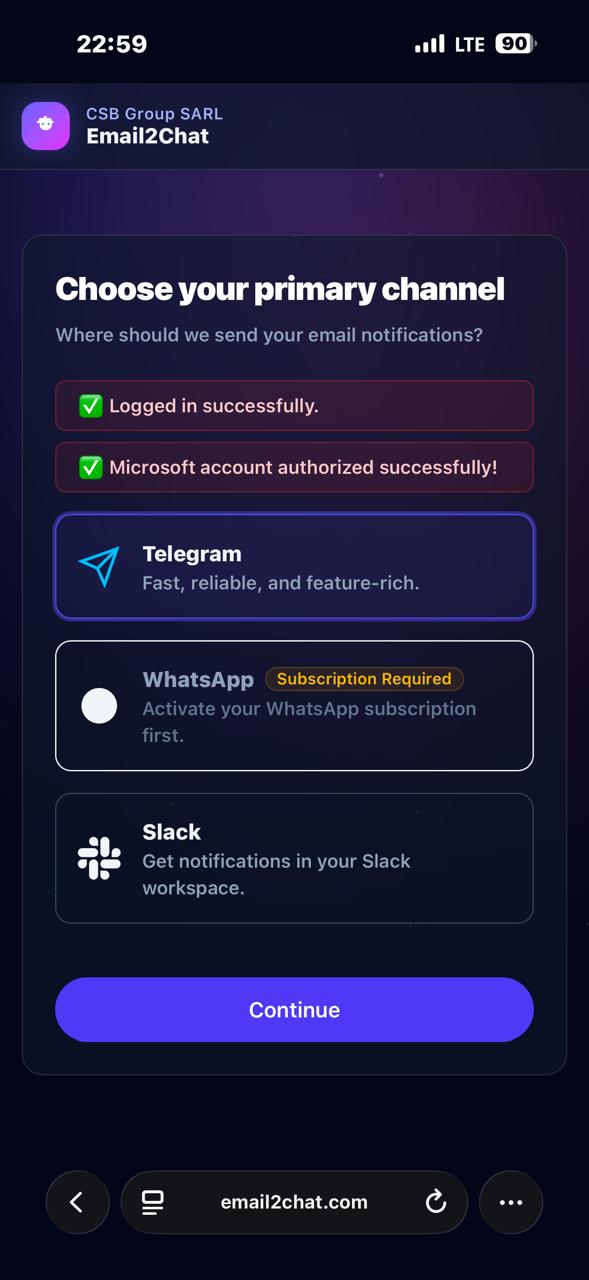 Telegram is free and unlimited. WhatsApp and Slack are also available.
Step 6: Link Your Telegram Account
Scan the QR code with your phone or tap "Open Connect Link" to open the Email2Chat bot in Telegram:
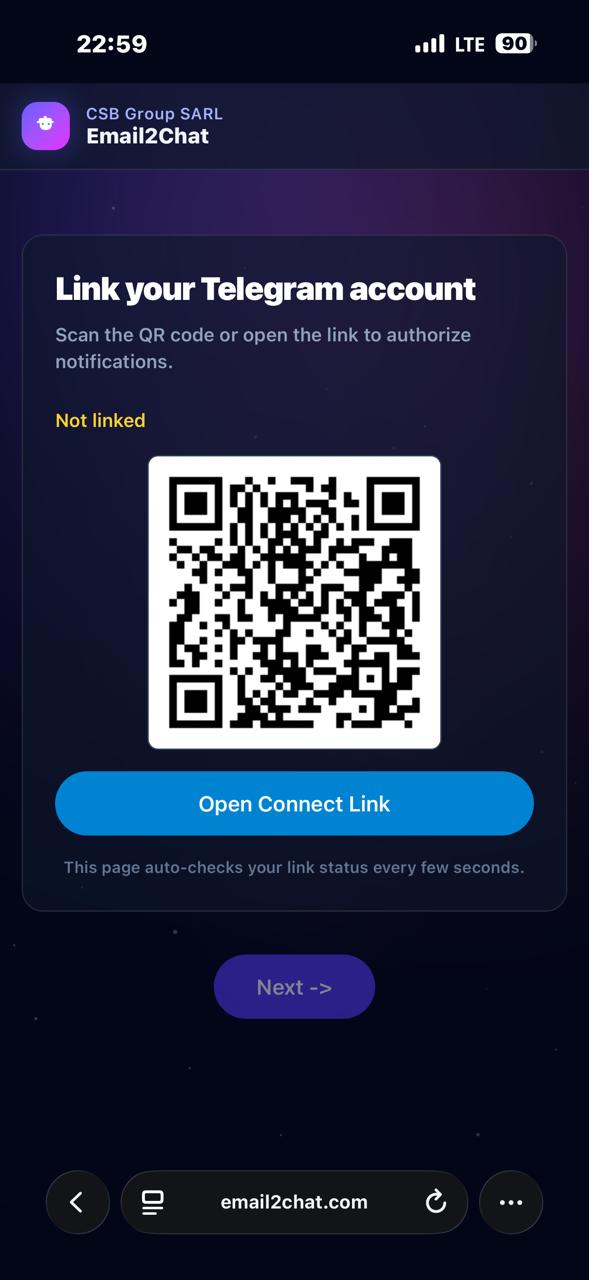 Scan the QR code or tap the link to connect your Telegram.
In Telegram, tap /start and the bot will confirm your account is linked:
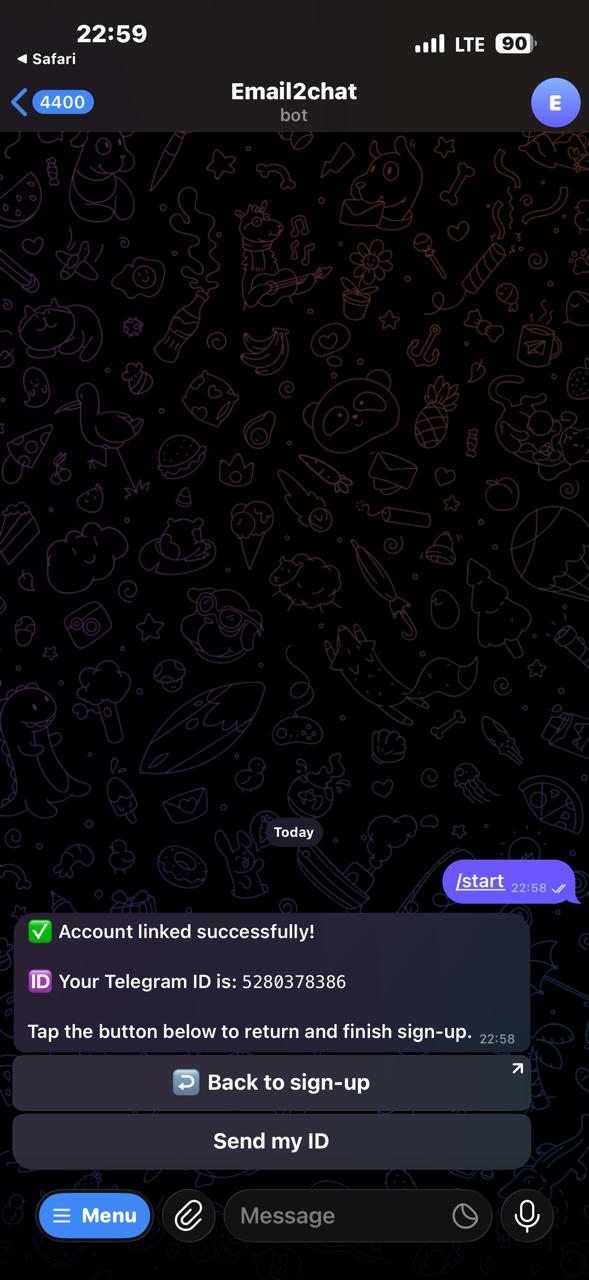 Your Telegram is now connected to Email2Chat.
Step 7: Enable AI Features
This is where Email2Chat gets powerful. You can enable AI features to save even more time:
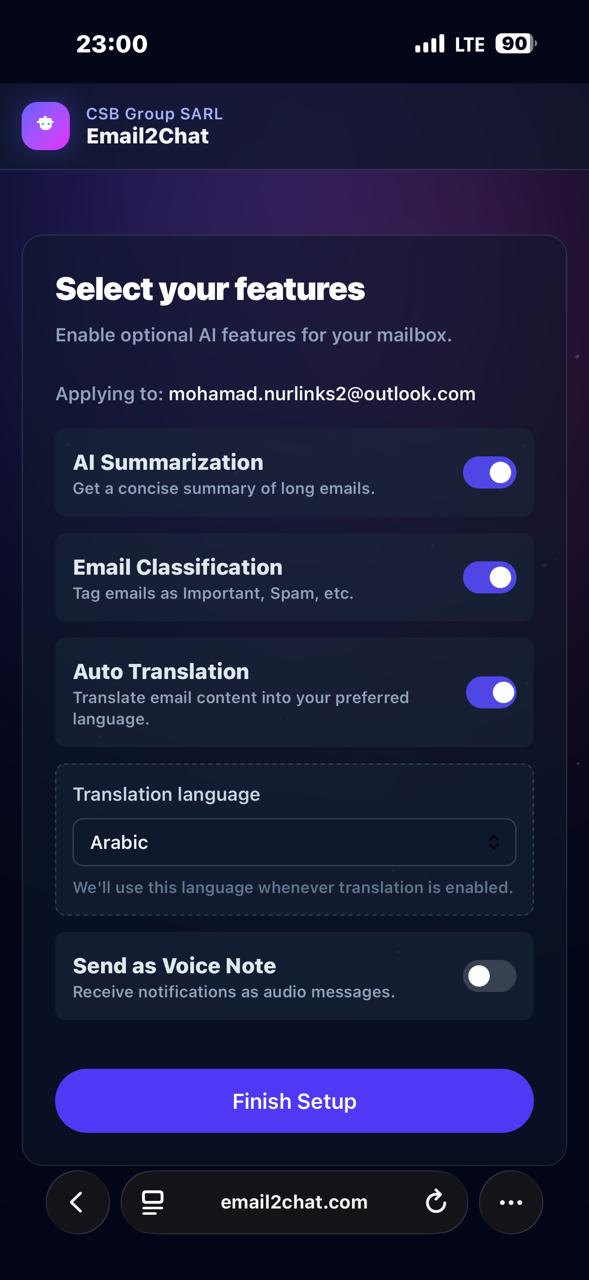 Turn on AI Summarization, Classification, and Translation to supercharge your notifications.
- AI Summarization — Condenses long emails into 1-2 lines. Know what it's about without reading the whole thing.
- Email Classification — Tags emails as Urgent, Important, Promotional, Newsletter, or Spam. Filter out the noise.
- Auto Translation — Receive emails in English but prefer Arabic? Or French? Email2Chat translates automatically into 200+ languages.
- Voice Notes — Get the email read aloud as a voice message in Telegram.
Toggle on the features you want and tap Finish Setup.
You're Done!
That's it. From now on, every new email that arrives in your Outlook inbox will be instantly forwarded to your Telegram with:
- The sender's name and email
- The subject line
- An AI-generated summary (if enabled)
- A classification tag like [Urgent] or [Promotional]
- A translation in your preferred language
Total setup time: less than 1 minute.
Why Email2Chat Instead of Zapier or IFTTT?
| Feature | Email2Chat | Zapier | IFTTT |
|---|---|---|---|
| Price | Free (Telegram) | $19.99/month | $6.99/month |
| Setup time | 1 minute | 15-30 minutes | 10-20 minutes |
| AI summary | Built-in | Not included | Not included |
| Email classification | Built-in | Not included | Not included |
| Translation | 200+ languages | Not included | Not included |
| Coding required | No | No | No |
| Privacy | Read-only, offline AI | Cloud processing | Cloud processing |
Email2Chat is free for Telegram, includes AI features that competitors charge extra for, and processes everything with offline AI — your email content never leaves the server.
Frequently Asked Questions
Is it really free?
Yes. Telegram notifications are completely free with no limits. WhatsApp is available with a subscription.
Can Email2Chat read or delete my emails?
No. Email2Chat uses read-only access. It can only view new emails to send you notifications. It cannot send, delete, or modify anything in your inbox.
Does it work with Office 365 / work email?
Yes. Email2Chat supports personal Outlook/Hotmail accounts and Office 365 work/school accounts.
How fast are the notifications?
Near-instant. Email2Chat uses push notifications (webhooks) — not polling. New emails typically arrive in Telegram within seconds.
Can I filter which emails get forwarded?
Yes. Email2Chat has built-in filters. You can filter by sender, keyword, or AI classification. For example, only forward emails tagged as "Urgent" or block all "Promotional" emails.